
TMD Software
We built this software to give you clear, actionable data. It pairs directly with our Torque Measuring Device to capture force and velocity in real time.
Accuracy was our prime goal, but we also structured the workflow for streamlined workshop operation. Setup and test your equipment in minutes.
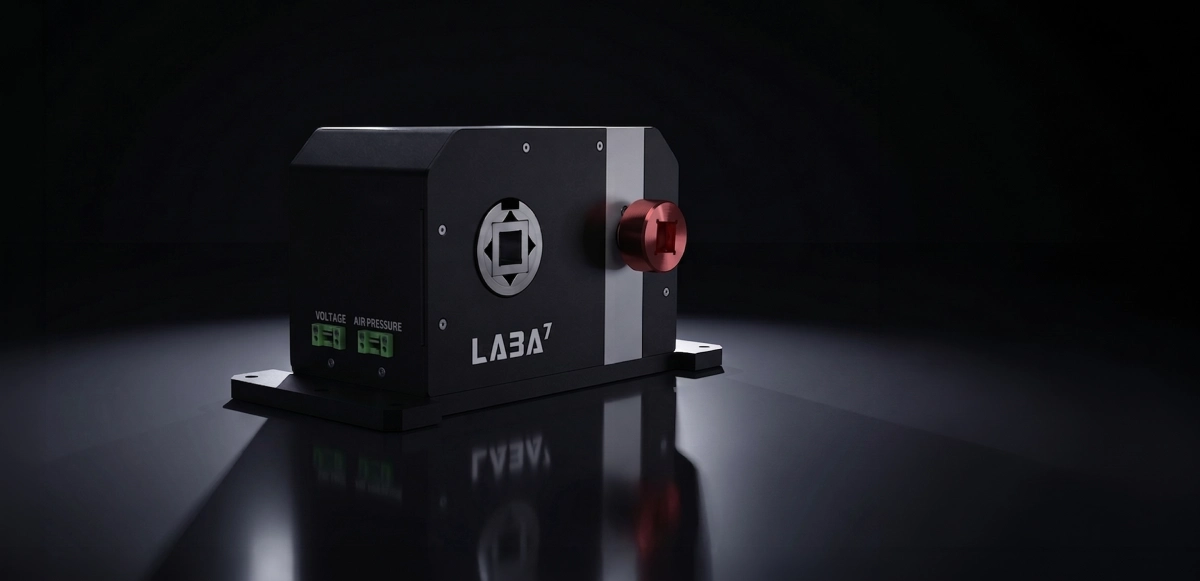
Core Interface Functions
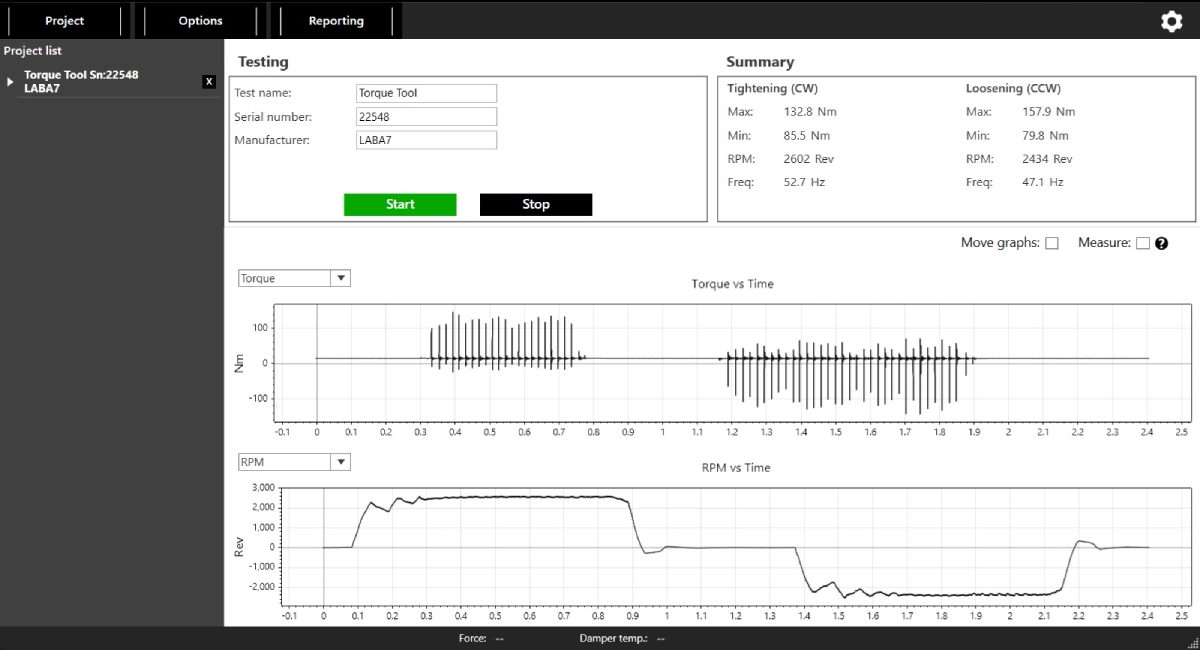
We designed the interface to handle multiple data streams simultaneously. You can monitor torque, air supply pressure, and battery voltage on a single shared timeline. Or you track rotational velocity alongside air presure or tool battery data. This allows you to compare output limits and mechanical performance without guessing.
To identify internal tool wear or inconsistencies, you can instantly overlay current runs against historical baseline tests.
The system automatically logs maximum, minimum, and average values for both tightening and loosening directions.
Last but not least, you can export test results into reports featuring your workshop logo, giving your clients documented, empirical proof of their equipment’s performance.
Visual Data & Diagnostics
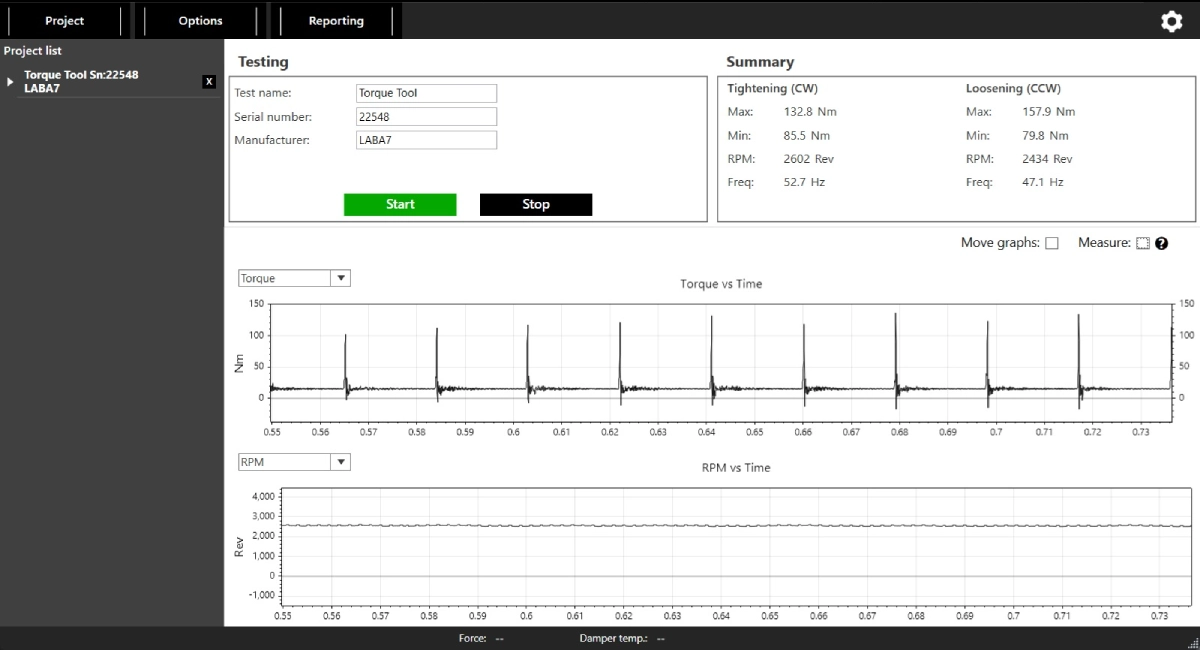
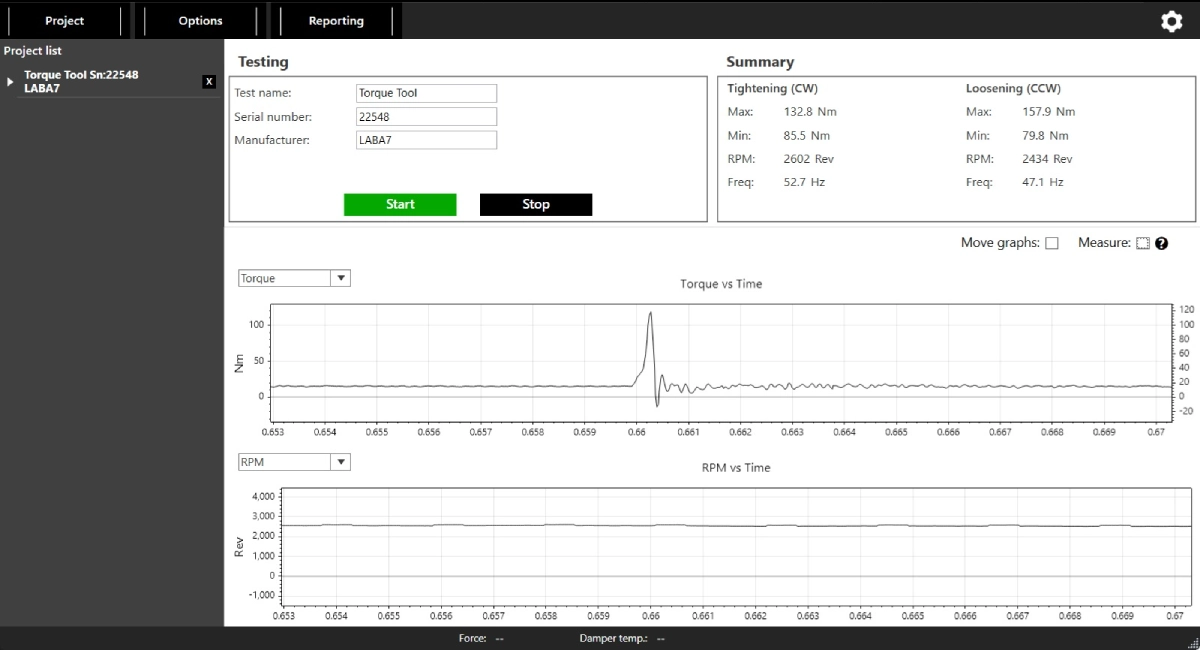
The TMD Software translates electrical signals into raw physical values. We included adjustable downsampling rates and an RPM smoothing window to reduce short-term signal fluctuations, giving you clean, readable graphs.
The torque and velocity graphs help you pinpoint peak force, structural drop-offs, and mechanical drag before failure occurs.
You can also connect external sensors via the two built-in ADC channels to track real-time power delivery or line pressure. This ensures the tool receives optimal energy during testing.
Finally, you can activate on-screen measurement cursors to isolate specific data points manually for precise analysis.
System Requirements
This application requires a dedicated Windows machine to log and render test variables accurately.
Setup & Configuration
- Run the downloaded TMD software file and follow the default installation prompts.
- Turn on your testing hardware and connect it to your computer using the provided Ethernet cable.
- Open the application, navigate to the Connection tab, and wait 15–20 seconds for initialization.
- Click Auto-detect to lock onto the assigned IP address, then click Connect.
- Set your preferred data catalog in the settings, configure your external sensor offsets if needed, and start testing.
Download & Updates
We push updates through two distinct channels inside the software.
Select the STABLE channel for extensively validated releases suited for continuous workshop use.
Choose the BETA channel to access our latest diagnostic features and minor fixes early.
Frequently Asked Questions
Where can I see what is new in the latest software version?
We document every bug fix, feature addition, and calibration improvement. You can read the complete history of our application updates on our TMD Software Release Notes page.
Is the software compatible with macOS?
We built this application natively for Windows. We recomend running TMD Software on Windows 8, 10, or 11 with .NET CORE 8.0 installed to log the hardware data streams accurately. But if your workshop computer uses macOS, you can run the software using a Windows emulator.
Do I need an ongoing subscription to use the testing software?
No, the TMD software is completely free of charge. We include the full Windows application license when you purchase our TMD. We do not require recurring subscriptions, and we do not charge for firmware or software updates.
How do I switch between different testing units in the shop?
If you run multiple TMDs, you can wire them to the same network. Navigate to the Connection tab in the software to switch between active hardware IP addresses quickly without rebooting the application.
What happens if the system loses connection during a test?
We rely on a hardwired Ethernet connection rather than Wi-Fi to prevent data dropouts in heavy industrial environments. If your interface disconnects, check the green LED status indicator on the back of the machine and ensure your RJ45 cable is fully seated.